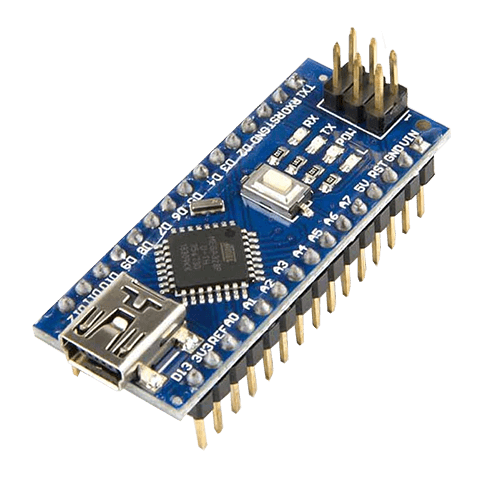
The Arduino Nano Matter has been a low‑power smart home board from day one, built around the Silicon Labs MGM240S. It already supported Matter over Thread and Bluetooth LE. With the Silicon Labs core 5.0.0 for Arduino, it gains a third protocol: Zigbee 3.0.
Enabling Zigbee in Arduino IDE
Switching stacks is literally a menu choice:
- Open
Tools › Protocol stack - Select Zigbee
- Upload your sketch – same board, same IDE, compiled against the Zigbee 3.0 stack instead of Matter or BLE.
The new Zigbee library wraps Silicon Labs’ EmberZNet stack in Arduino‑style classes. A sensor becomes an object: set names, call begin(), then report values. A minimal temperature sensor looks like this:
```cpp
#include <Zigbee.h>
#include <ZigbeeTemperatureSensor.h>
ZigbeeTemperatureSensor sensor;
void setup() {
Serial.begin(115200);
Zigbee.setVendorName("Arduino");
Zigbee.setProductName("Zigbee Temperature Sensor");
Zigbee.begin();
sensor.begin();
Serial.println("Connecting to Zigbee network...");
while (!Zigbee.isConnectedToNetwork()) {
delay(200);
}
}
void loop() {
float celsius = getCPUTemp();
sensor.set_measured_value_celsius(celsius);
delay(2000);
}
```
Put your Zigbee coordinator into pairing mode and upload. Joining can take a few minutes depending on the mesh. Network data is stored in non‑volatile memory, so the board stays joined across resets and uploads.
Ready‑made device types
The core ships with 14 examples covering 11 Zigbee device types:
- Lights: on/off, dimmable, color bulb, on/off plug‑in unit
- Switch: sends on/off and dimming commands
- Sensors: temperature, humidity, illuminance, contact sensor
- Helpers: power source reporter, time client
Devices can join as a router (default, relays mesh traffic) or end device.
Two powerful features:
- Direct bindings – once a switch is bound to a light, it controls it directly, without waiting for hub automations. The light/plug classes can also act as Find‑and‑Bind targets via
start_find_and_bind(). - Identify – when the hub sends an Identify request, your sketch is notified so you can blink an LED; handy with multiple identical boards.
Out of the box, the temperature/humidity/light examples use fake values or the MG24 die temperature. Hook up a real sensor (e.g. Arduino Modulino Thermo) and tweak a few lines to get real‑world readings.
Using Nano Matter as a Zigbee coordinator
A Zigbee network is built around a coordinator. The Nano Matter can also fill this role using the bundled Zigbee EZSP coordinator firmware and a Python helper script in the core’s extra/firmware folder:
```bash
python3 extra_firmware_flasher.py nano_matter zigbee
```
Plug that board into your Home Assistant machine (a Raspberry Pi works well) and add it to ZHA as the Zigbee radio. Every node in the network can then be an Arduino‑programmable board.
To turn the coordinator back into a regular device, select Tools › Programmer = OpenOCD, run Tools › Burn Bootloader (this erases the coordinator firmware and network), then upload a Zigbee sketch.
Getting started
- In Boards Manager, install Silicon Labs core 5.0.0.
- Select Nano Matter and set
Tools › Protocol stackto Zigbee. - If it’s a new board or you’re switching from Matter/BLE, set
Tools › Programmer = OpenOCDand runTools › Burn Bootloaderonce. - Open
File › Examples › Zigbee, pick an example and upload.
From there you can build a door‑left‑open alert, a proper room sensor, a bound desk lamp and switch, or a Zigbee Smart Clock that sets its own time from the network.
Source: Arduino Blog